
Components
SML uses reusable Webflow components with predefined structures and configurable properties.
Components are ready to use out of the box and can be extended with additional properties and styling when a project requires them. This guide explains how, including a practical example.

Working with components
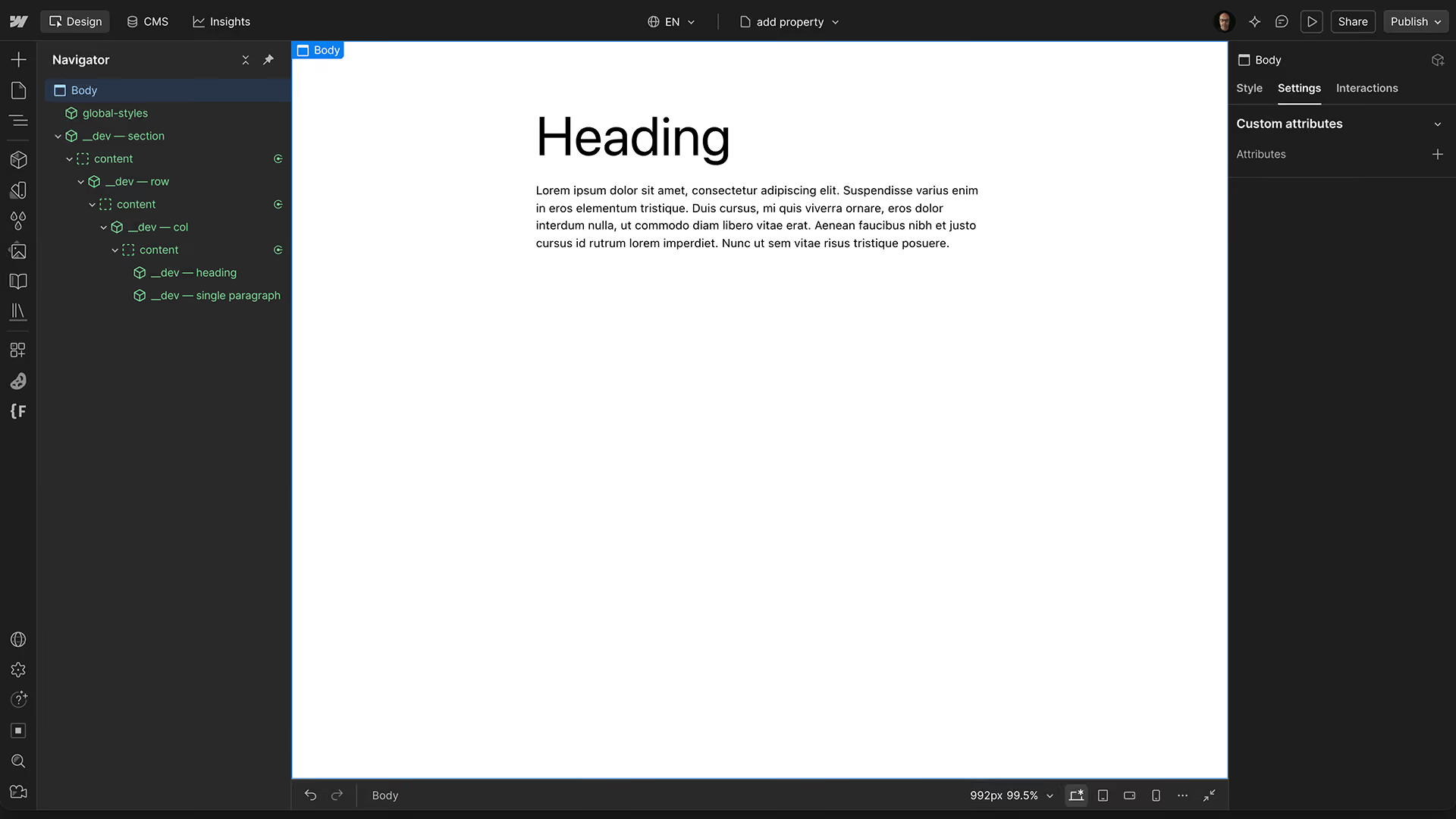
SML components are organized in Webflow's Components panel under the Development group.
The main components include familiar elements such as sections, rows, columns, headings, paragraphs, images, and buttons.
To use a component, place an instance on the page and configure its available properties.
These properties can control content, layout, responsive behavior, or styling, depending on the component.
Main components and helpers
Alongside the regular components, SML uses smaller helper components to provide additional settings.
These helpers are identified by the traffic-sign icon in Webflow's Components panel and aren't intended to be placed directly on pages.
A helper typically contains a single empty Div with the class hidden. Its visibility is also set to Hidden in Webflow's element settings, so it isn't included in the published HTML.
The helper's purpose is to hold a selection of component variants that can be exposed as a dropdown property on another component.
For example, the Row component uses helpers for direction, alignment, justification, gap, and gutter.
The selected values are then used by conditional attributes on the parent component.
This approach makes it possible to extend component settings without introducing unnecessary elements into the published HTML.
Extending component properties
SML doesn't include every possible styling option by default.
Some settings depend on the requirements of a project. Font weight is a good example: one website might use a font with three available weights, while another uses a variable font with a much wider range.
Instead of providing options that might not be supported, SML allows developers to introduce the settings they need.
In the following example, we'll add a font-weight dropdown to the Single Paragraph component.
The process consists of creating a helper, connecting its variants to the parent component, adding a conditional attribute, and defining the corresponding CSS.
Example: Adding a font-weight property
For this example, we are going to add the option to alter the font weight of the text inside the single paragraph component. We will use three possible weights:
- Regular — 400
- Medium — 500
- Bold — 700
Regular will be the default. Medium and Bold will be available as additional options.
Step 1 — Create the helper component
- Open the Components panel in Webflow and create a new component named:
🚫 __dev — font weight.
We add the 🚫 to make it clear that this is a helper component, not to be used on its own.
- Save it in the Development group alongside the existing SML components.
- Give the div inside the component the class hidden.
- In the div's settings, set Visibility to Hidden.
The helper doesn't need any content or additional elements.
Step 2 — Add the variants
- Rename the base variant to Regular — 400
- Create two more variants and name them Medium — 500 and Bold — 700
These variants become the available options in the font-weight dropdown.
They don't require any styling.
Step 3 — Add the helper to Single Paragraph
- Open the __dev — single paragraph component.
- Add the new font-weight helper inside it.
- Expose the helper's variant selection as a component property and name it font weight.
This gives access to the three available options inside the helper component.
- Keep regular as the default value.
You can now select a Single Paragraph instance and choose its font weight through the component properties. However, the selection doesn't affect the paragraph yet.
Step 4 — Add the conditional attribute
- Within the Single Paragraph component, select the paragraph element that should receive the styling.
- Open its Settings panel and add a custom attribute.
Both the attribute name and its value will be controlled through Webflow's conditional logic.
- Create a conditional value for the attribute name.
This ensures the attribute is only added when the selected weight differs from the default.
- If font weight is not regular — 400, return data-sml-font-weight.
- Otherwise, return an empty value.
- Create a second conditional value for the attribute value:
- If font weight is medium — 500, return medium.
- If font weight is bold — 700, return bold.
- Otherwise, return an empty value.
Step 5 — Add the CSS
The component property now controls which attribute is added to the paragraph, but we still need to define what each value does.
- Open the Global Styles component and open the site-specific CSS.
- Add the following CSS:
[data-sml-font-weight="medium"] {
  font-weight: 500;
}
[data-sml-font-weight="bold"] {
  font-weight: 700;
}
There is no need to define a rule for regular, since the paragraph already uses its default font weight.
The font-weight property is now available on every Single Paragraph instance.
When to create a new component
Not every requirement needs a new component.
If an existing component already provides the necessary structure, consider extending it with additional properties or variants.
A new component becomes useful when a structure or functionality will be reused in multiple places and should be maintained centrally.
The objective is to keep the component library manageable while making it easy to expand when a project requires something new.
